Know What Belongs Before Something Goes Wrong
A home network asset inventory is a list of the devices allowed to use your network, what each device does, who owns it, and how you can identify it. That sounds like paperwork until an unfamiliar client appears in your router at midnight. Without a baseline, you cannot quickly tell whether it is an intruder, a forgotten smart plug, a guest's phone, or your television using a new private address.
The goal is not to produce a perfect enterprise database. The goal is to answer three questions without guessing:
- What is connected?
- Should it be connected?
- What should I do if it behaves unexpectedly?
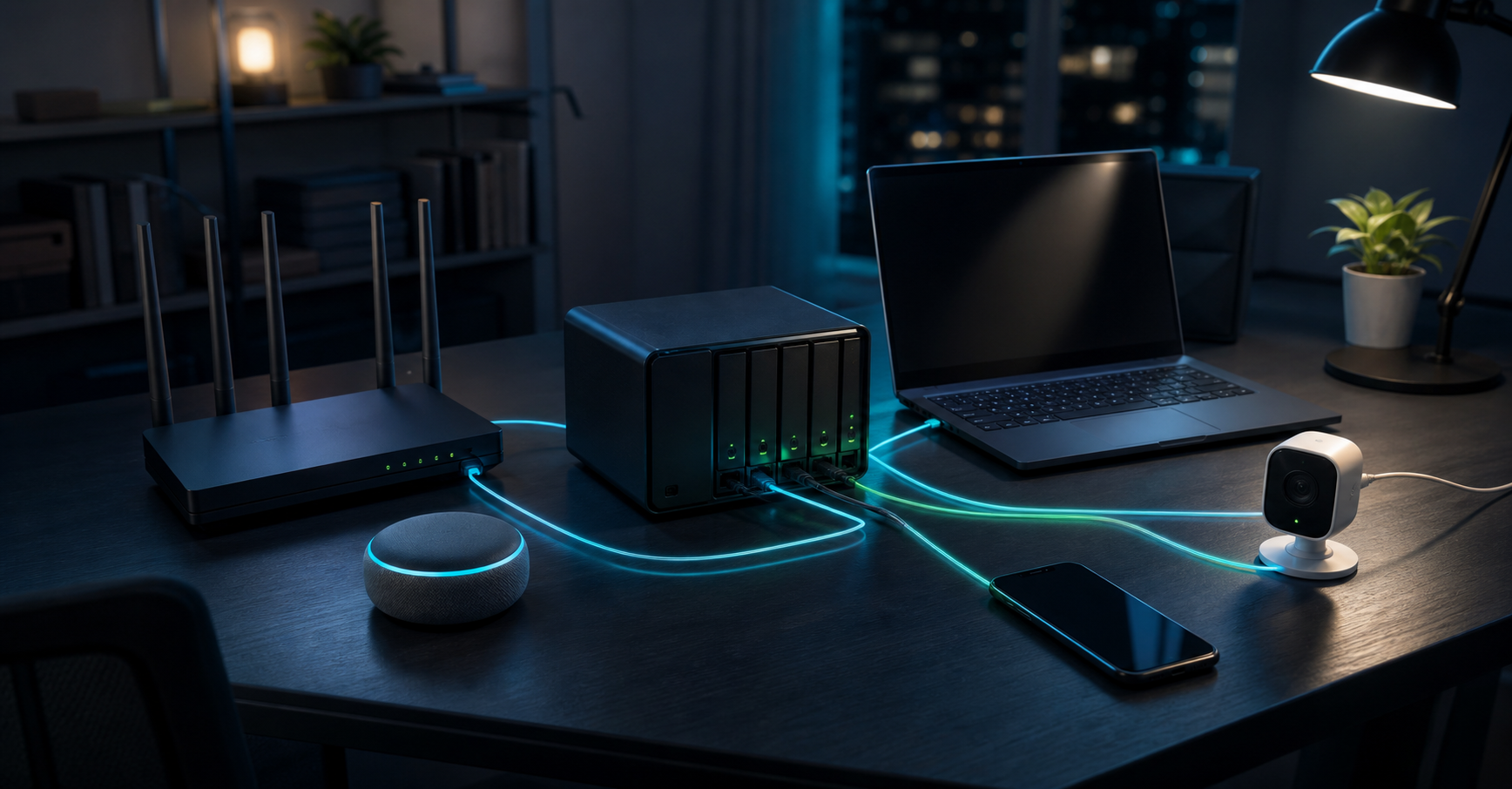
If your network has grown from one laptop into a router, switch, storage box, cameras, speakers, consoles, and assorted smart devices, this inventory is the map that makes the rest of your security work possible. It also brings some order to the kind of infrastructure sprawl described in a home lab that kept growing.
Start at the Network Edge
Begin with the device that controls access: usually your router or firewall. Open its administration interface and export or copy the current client list if that function exists. Look at both active clients and recent DHCP leases. A sleeping phone or powered-down printer may be absent from the active view but still appear in the lease history.
Do not trust friendly device names on their own. Names can be generic, duplicated, stale, or selected by the device owner. Record the MAC address, current IP address, connection type, and access point or switch port when available. These are clues, not permanent identities. Modern phones and laptops may use private or randomized MAC addresses, and DHCP can assign a different IP address later.
The first pass will probably contain obvious devices, vague names, and several mysteries. That is normal. Save the snapshot before trying to resolve every entry. It gives you a fixed list to investigate instead of a screen that changes as devices wake and sleep.
Record Fields That Help During an Incident
A useful inventory needs enough detail to support a decision. It does not need every specification from the product manual. For each asset, record:
- A name you will recognize, such as
living-room-tvorwork-laptop - Device type, manufacturer, and model
- Owner or responsible person
- Purpose and physical location
- Wired or wireless connection
- MAC address and current IP address
- Network segment, such as trusted, guest, or IoT
- Administration method and update method
- Support status or expected replacement date
- Date last seen and date last verified
- The action to take if the device becomes suspicious
Avoid putting passwords, recovery codes, or WiFi keys in the inventory. Store secrets in a password manager and note only that credentials exist. The hard lessons in migrating a password manager apply here too: an inventory should point to secure access without becoming a second secret store.
A plain spreadsheet or Markdown file is enough for most homes. Consistency matters more than tooling. Use one row per device and keep the same name in router reservations, monitoring tools, and notes where possible.
Name | Owner | Type | MAC | Network | Location | Last verified | Response
Match Digital Entries to Physical Devices
Next, walk through the property room by room. Check obvious equipment first: computers, phones, tablets, printers, televisions, consoles, cameras, speakers, appliances, solar controllers, alarm panels, and network storage. Then look for the less obvious clients hidden behind furniture or inside cabinets.
For wired devices, trace the cable from the switch when practical. Label both ends with a short identifier that matches the inventory. For wireless devices, compare the MAC address shown in the router with the network information shown in the device settings. Photographing the model and serial label can help with later warranty or support work, but keep those photos private.
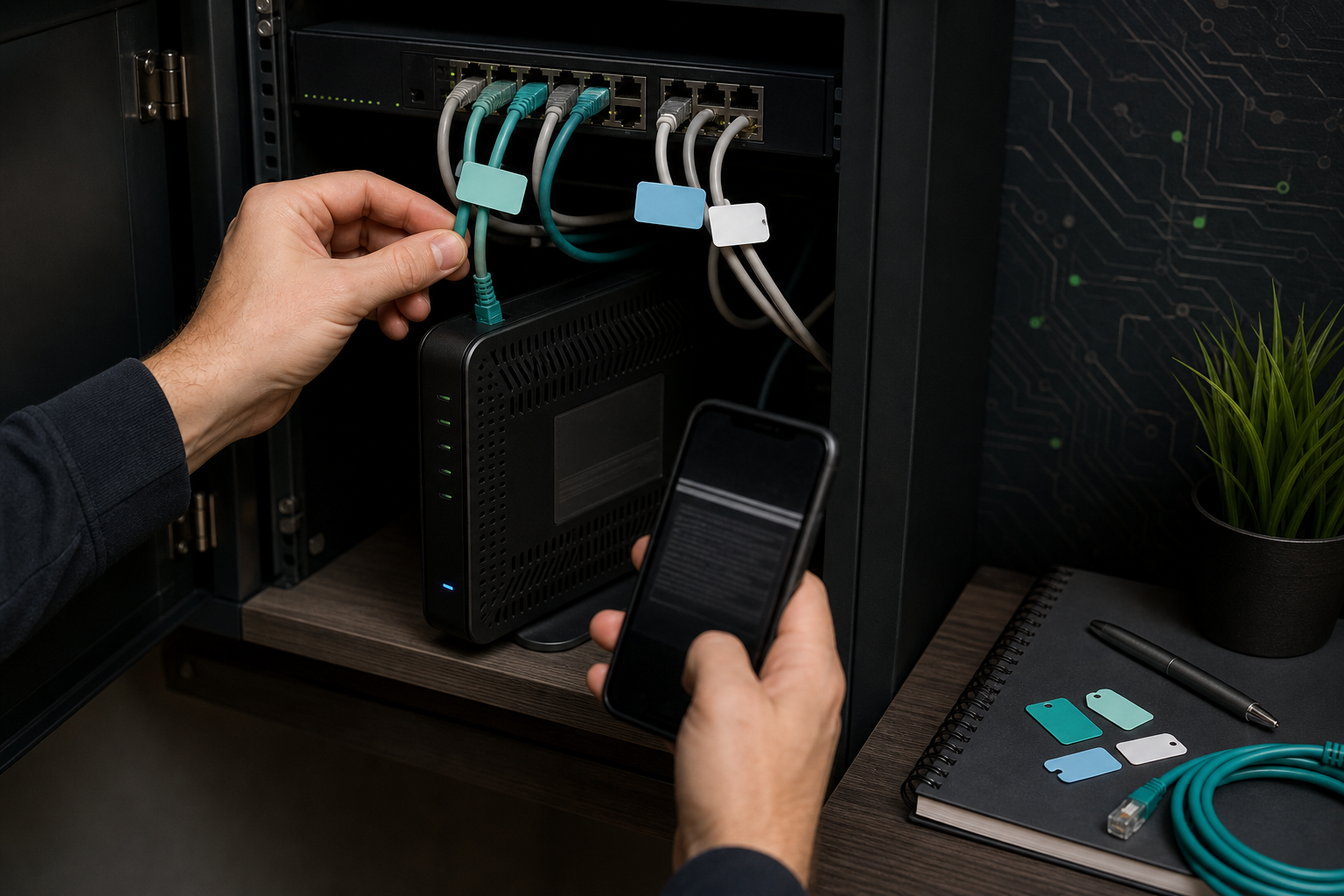
Powering down one uncertain device at a time can help confirm which router entry disappears. Do this carefully. Do not interrupt storage, security, medical, heating, or other important systems merely to make identification faster. When a device cannot be safely interrupted, document the uncertainty and investigate through its settings or vendor management app instead.
Investigate Unknown Clients Methodically
An unknown entry is a question, not proof of compromise. Work through evidence in a fixed order:
- Note the MAC address, IP address, connection time, and access point.
- Check whether the device appears only when a particular person or appliance is present.
- Compare the entry with recent purchases, visitors, repairs, and smart home changes.
- Look for the MAC address in device settings and physical labels.
- If your router supports it, temporarily pause or isolate the client while you identify it.
- If the device remains unexplained, change access credentials and review the router configuration.
Avoid immediately deleting logs, rebooting everything, or factory-resetting the suspected client. Those actions can remove useful context. First capture what the router shows, including timestamps and connection details. Then contain the device if containment will not disrupt something critical.
Devices that regularly leave home deserve a separate note. A laptop or phone used on public networks has a different risk profile from a television that never leaves the living room. The problems in the coffee shop WiFi incident are a useful reminder that your inventory should include how and where portable assets connect, not only where they sit at home.
Use the Inventory to Segment the Network
Once every device has a purpose, grouping becomes easier. Personal computers and phones may belong on a trusted network. Visitors can use a guest network. Smart appliances, speakers, and cameras can use an IoT network with limited access to trusted devices. Lab equipment can have its own segment if experiments should not reach everyday systems.
Segmentation does not make an insecure device safe. It limits what that device can reach if it fails or is compromised. This is the practical version of applying zero trust at home: access follows a known need rather than the assumption that everything inside the house is trustworthy.
Add the intended segment to each inventory entry before moving devices. Afterward, verify that the device still performs its required job. A camera may need internet access but no connection to a work laptop. A printer may need access from trusted computers but no ability to initiate connections to the rest of the network.
Turn the List Into a Response Plan
The final inventory column should state a short response. This turns passive documentation into something useful under pressure.
For a lost phone, the response might be: revoke its WiFi access, remove active sessions, trigger the platform's lost-device controls, and rotate credentials stored outside secure hardware. For an unsupported camera, it might be: isolate it from the internet and schedule replacement. For an unknown client, it might be: pause access, preserve router details, confirm with household members, then rotate the network key if it remains unidentified.
Keep the instructions short enough to follow when you are tired or worried. Link each action to the correct device name. If two devices have identical model names, the MAC address and physical location should distinguish them.
Maintain a Baseline You Can Trust
An inventory becomes stale when it is treated as a one-time project. Update it when you add, remove, replace, sell, or reset a device. Review the router client list regularly and compare it with the baseline. A brief check after guests leave or contractors finish work can also catch temporary devices that should no longer have access.
During each review:
- Remove devices you no longer own.
- Confirm unsupported devices are isolated or replaced.
- Check that each asset remains on its intended network.
- Verify router reservations and labels still match the inventory.
- Investigate entries that have changed identity or appeared unexpectedly.
- Save a dated snapshot so you can compare future changes.
The finished inventory should make an unfamiliar connection stand out. More importantly, it should tell you what normal looks like. That is the difference between staring at a list of anonymous addresses and making a confident security decision.