Guest Access Should Not Mean Full Network Access
Sharing your primary WiFi password feels harmless when a friend needs directions, a relative wants to stream a video, or a contractor needs an internet connection. The problem is not that every visitor is untrustworthy. It is that their phone, tablet, or laptop has a security history you cannot see.
A guest device may be outdated, already compromised, or configured to discover other systems automatically. Putting it on the same network as your work laptop, printer, network storage, security cameras, and smart home controls gives that device opportunities it does not need.
A guest network creates a separate path to the internet. When it is configured correctly, visitors can browse and use online services without reaching trusted devices inside your home. It also lets you change guest access without reconnecting every device you own.
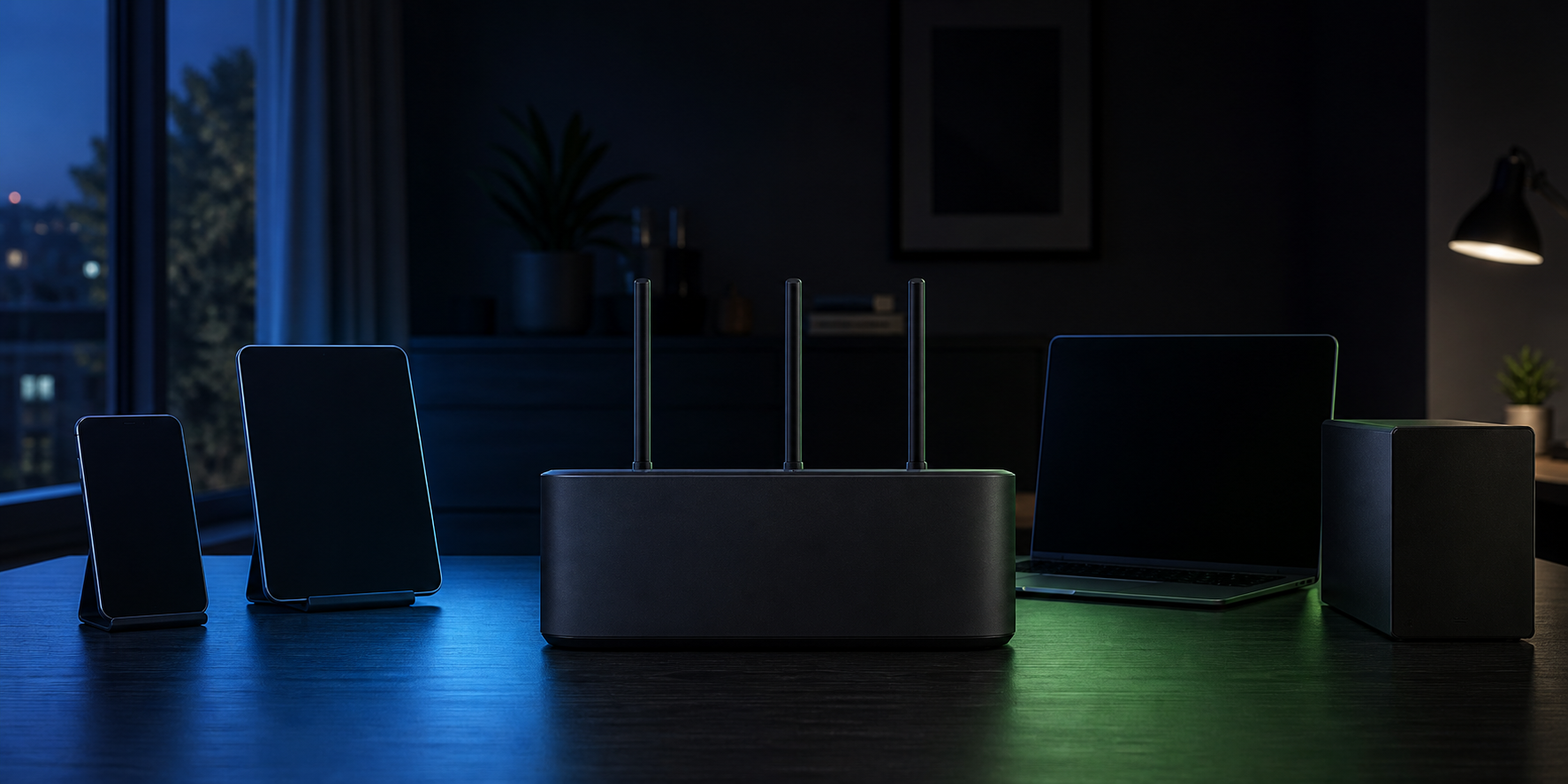
This is a practical form of network segmentation. It will not repair an infected guest phone or make every online activity private, but it can stop an unnecessary connection from becoming broad access to your home.
Know What Needs Protection First
Before changing router settings, identify the devices that should remain on your primary network. Include computers used for work or banking, network storage, printers, home servers, security systems, and anything used to administer other devices.
If you already maintain a home network asset inventory, use it to divide devices into three groups:
- Trusted: personal computers, phones, storage, and administration devices
- Guest: visitor phones, tablets, laptops, and temporary equipment
- Limited trust: smart TVs, speakers, cameras, appliances, and other connected devices that need the internet but rarely need access to your computers
The third group matters because many routers can create only one guest network. You may decide that visitor devices belong there while smart home equipment remains on the primary network. A more capable router may support an additional isolated network for connected devices. Use the separation your equipment actually supports rather than assuming a menu label creates it.
The principle is the same as zero trust applied to everyday technology: give each device the access required for its current job, not automatic access to everything nearby.
Prepare the Router Before Enabling Guests
Make router changes from a trusted computer, preferably through a wired connection if that is practical. A cable reduces the chance of disconnecting yourself while changing wireless names, passwords, or security modes. Record the current settings and make sure you know how to restore access if a change goes wrong.
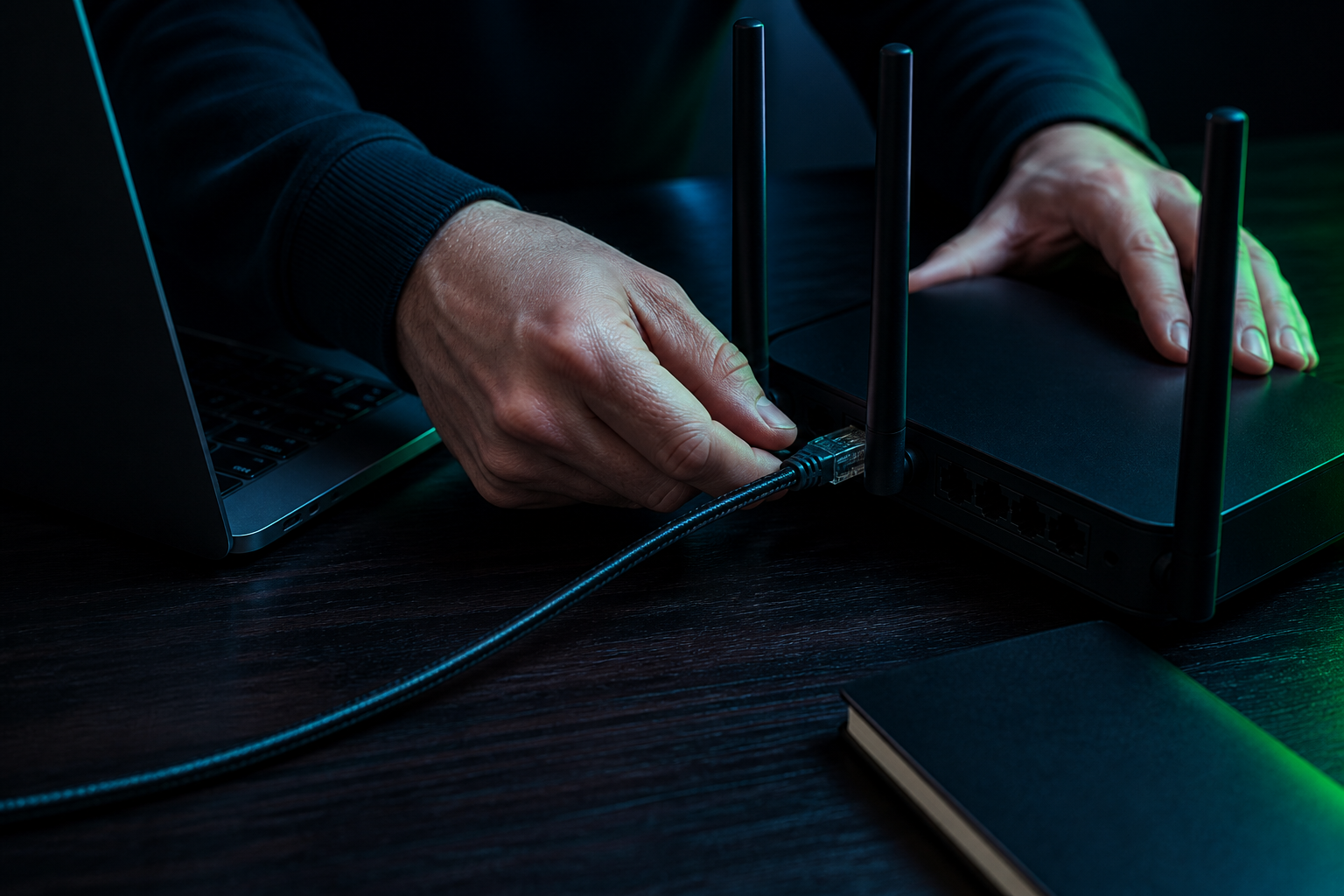
Sign in to the router using its local administration page or the provider's management application. The router administrator password must be different from both WiFi passwords. Anyone who can administer the router may be able to change its DNS, firewall, wireless, and update settings, so a shared network password should never double as an administrator credential.
Before creating the guest network:
- Install the router's available firmware updates.
- Confirm its firewall is enabled.
- Disable administration from the internet unless you have a specific, secured reason to use it.
- Disable WiFi Protected Setup if you do not need it.
- Check that the primary network uses WPA3 Personal or WPA2 Personal encryption.
- Confirm you can recover or reset the router if access is lost.
If the router offers only WEP or the original WPA mode, it is too old for a sensible new guest setup. Updating firmware may reveal newer options. If it does not, replacement is safer than building a new access plan around obsolete encryption.
Create a Separate Name and Password
Enable the router's guest network feature. Give it a name that is easy for invited visitors to recognize but does not reveal your surname, address, router model, or primary network name. The primary and guest networks need distinct names so you can tell immediately where a device connected.
Set a unique guest password. Do not reuse the primary WiFi password, router administrator password, or an account password. A long passphrase is easier to share accurately than a short collection of substitutions and symbols. Store it in your password manager so you do not have to weaken it for convenience.
Select WPA3 Personal when the router and expected devices support it. WPA2 Personal remains a reasonable compatibility choice for older devices. Avoid mixed modes that include obsolete standards unless one necessary device leaves no alternative, and reconsider whether that device belongs on the network at all.
Some routers let a guest network expire automatically. That is useful for short visits or temporary workers. Otherwise, change the guest password when it has been shared beyond the intended group, an unfamiliar device appears, or access should end. Routine changes without a reason often create more confusion than protection.
Turn On Isolation Deliberately
The important setting may be named guest isolation, intranet blocking, local network access, LAN access, or access to home devices. Enable the option that prevents guest clients from reaching the primary network. Wording varies, so read the description instead of trusting the network's name.
Also look for client isolation. This controls whether two devices on the guest network can communicate with each other. Blocking that communication is useful when unrelated visitors use the network, but it can stop casting, local multiplayer games, or file sharing between guest devices. Decide based on what visitors need, then keep the more restrictive setting when no local communication is required.
Do not enable access to shared storage, printers, router administration, or other local services merely because it is convenient. If a guest needs to print one document, sending it to the host is safer than permanently exposing a printer to every future visitor. Convenience exceptions tend to outlive the event that created them.
Universal Plug and Play can also create unexpected paths between devices and services. Leave it disabled unless a specific application requires it and you understand the resulting exposure. A guest network should be a narrow internet connection, not a second route into the trusted network.
Test Separation From a Real Guest Device
A saved setting is not proof of isolation. Connect a phone or spare laptop to the guest network and test the result from the visitor's side.
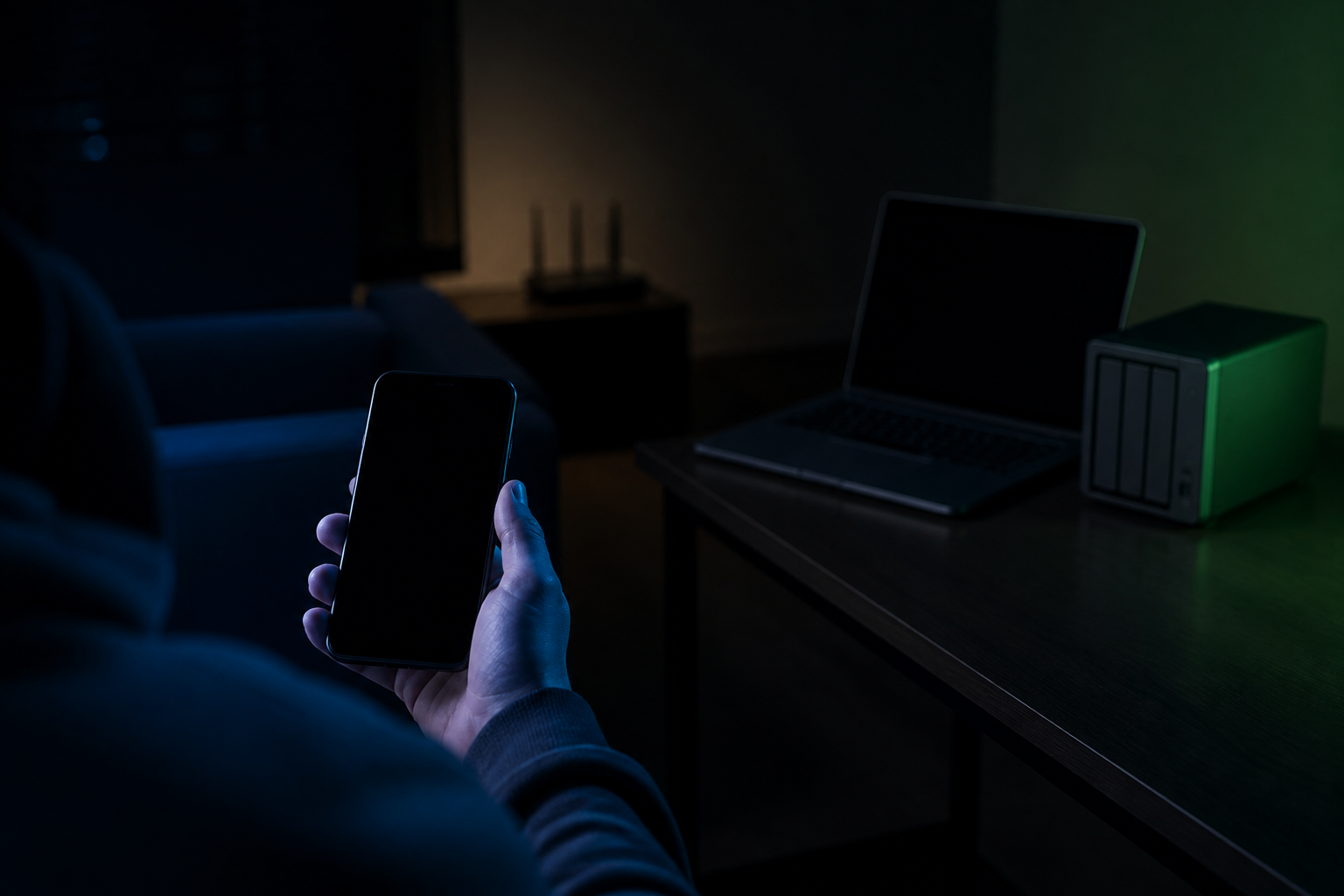
Confirm that the guest device can:
- Join using only the guest credentials.
- Reach ordinary internet services.
- Reconnect after WiFi is turned off and back on.
- Lose access when the guest password or expiration setting changes.
Then confirm that it cannot:
- Open the router administration page.
- Reach a network storage login or shared folder.
- Discover or print to a trusted printer.
- Cast to a private display or speaker.
- Connect directly to trusted computers or home servers.
Run these checks while the trusted devices are turned on. A failed discovery test proves little if the printer or storage system is asleep. If local access still works, return to the isolation settings and check whether the router separates wireless guests only from wireless clients while still allowing access to wired devices.
If a suspicious device was previously connected to the primary network, moving it does not undo earlier access. Review important accounts and systems using a prepared personal cybersecurity incident response plan rather than treating network separation as cleanup.
Make Joining Easy Without Weakening It
Visitors should not need your router administrator interface or primary password. Share only the guest network name and guest password. Enter it on their device yourself when appropriate, or use the operating system's built-in WiFi sharing feature from a trusted device after confirming the displayed network name.
Keep the guest credentials somewhere you control rather than displaying them permanently where passersby can photograph them. If you use a QR code, generate it with a trusted local feature and remember that anyone who sees the code receives the same access as someone who knows the password.
Household members should understand which network is for which devices. If your laptop silently joins the guest network, local backups and printing may fail. If a visitor's device silently joins the primary network because credentials were saved from an earlier visit, the separation disappears. Forget the wrong saved network on each device when necessary.
The caution used on unfamiliar public WiFi still applies to guests. A separate home network controls local reachability, but each device still needs current software, secure accounts, and encrypted online connections.
Review the Guest Network With the Router
Check the guest network whenever you review connected devices or install router updates. Look for unfamiliar clients, confirm isolation remains enabled, and remove exceptions that no longer have a purpose. Router upgrades and factory resets can restore defaults, rename options, or disable a network without making the change obvious.
A short review should answer five questions:
- Does the guest network still use WPA3 Personal or WPA2 Personal?
- Is its password still limited to the intended people?
- Can guests reach the internet but not trusted devices?
- Are guest clients isolated from one another when required?
- Is router administration unavailable from the guest network and the internet?
The goal is not an elaborate home network. It is a clear boundary you have tested. Visitors receive the connection they asked for. Trusted devices keep their local services. The router enforces the difference even when nobody remembers to think about it.