Give the Printer a Job Description
A home printer can spend weeks asleep and still have network settings, an administrator login, and connections to online services. Getting a page out of it proves that printing works. It says little about who can change its settings or send it the next job.
Start by writing down what your household actually needs: printing from two laptops, occasional phone printing, and scanning to one computer, for example. Those requirements give you a way to decide which connections should stay enabled. The objective is a smaller, understandable setup that still handles ordinary work.
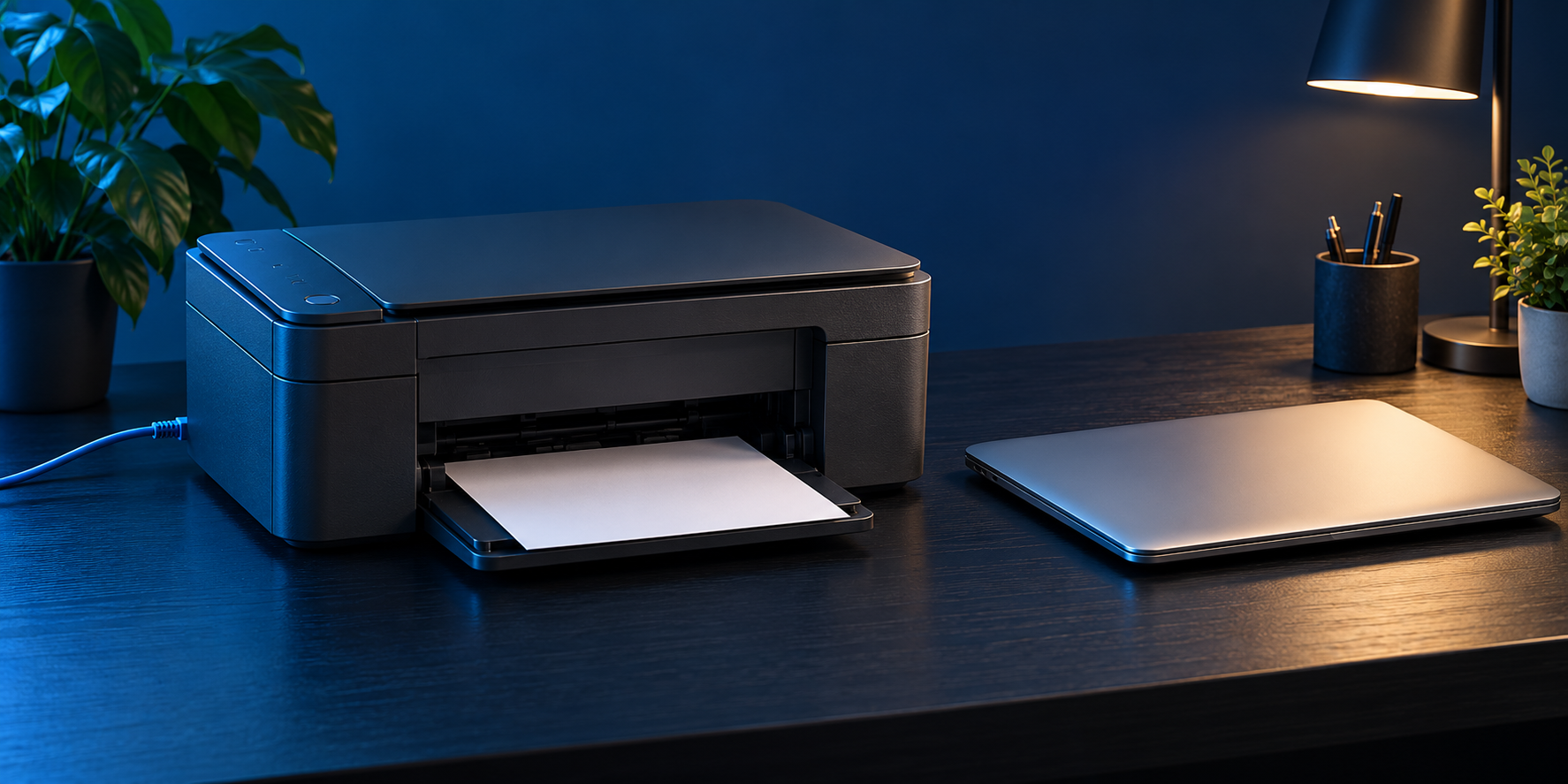
Review a printer you own and administer. For an employer-managed device or shared office printer, ask the administrator before changing anything. This guide focuses on a household device, where you can check the settings and test the result yourself.
Identify the Device and Save a Baseline
Find the exact model on the printer, then match it to the entry in your router's connected-device list. Compare the network address shown on the printer's display or configuration report. Do not assume that the first device named “printer” is the one on your desk.
Add it to your home network asset inventory. Record its model, current address, connection method, firmware version, administration method, and review date. Keep passwords elsewhere in your password manager.
Before making changes, print a harmless page from each device you regularly use and scan a non-sensitive sheet to the usual destination. Note what works. This prevents an old scanning problem from being mistaken for a consequence of today's security changes.
Save relevant settings privately if the model supports an export, or make brief notes. A configuration report may contain wireless credentials or other sensitive information. Do not leave it in the output tray or upload it to a public support discussion.
Protect Administration Separately From Printing
Open settings through the manufacturer's established application or the printer's verified local address. Obtain model-specific instructions through a support route you deliberately choose. Avoid a search advertisement promising a driver repair or a pop-up offering to fix the printer remotely.
Many network printers provide a browser-based administration page. Prefer its supported HTTPS option. If the browser reports a certificate problem, pause and check the exact model's documentation and the address you are using. Do not make disabling browser protections part of the setup routine.
Set a unique administrator password where supported, replacing any factory credential. Save it before signing out, then confirm you can sign back in. The password for changing printer settings serves a different purpose from the home WiFi password and any Wi-Fi Direct password.
Check what the model actually protects. Requiring an administrator login does not necessarily require authentication for every print job. Treat settings access and permission to print as separate questions.
Update the Firmware Through a Trusted Route
Firmware is the software running inside the printer. Check the exact model's support information and available updates using its built-in updater or the manufacturer's official tool. Updating a computer's print driver does not demonstrate that the printer's firmware is current.
Read the update notes, including compatibility and consumable restrictions, before proceeding. Choose a time when nobody needs the printer, keep power stable, and follow the update instructions without interrupting the process. Some updates restart the device; wait for completion rather than repeatedly switching it off.
Afterward, check the reported firmware version and repeat a basic print test. Revisit security settings because an update can change available options. If automatic updates are supported, understand how they work and keep a way to check their status.
If the manufacturer no longer supports the device, record that limitation. A printer that still feeds paper may need replacement or a more restricted role.
Review Every Way a Job Can Arrive
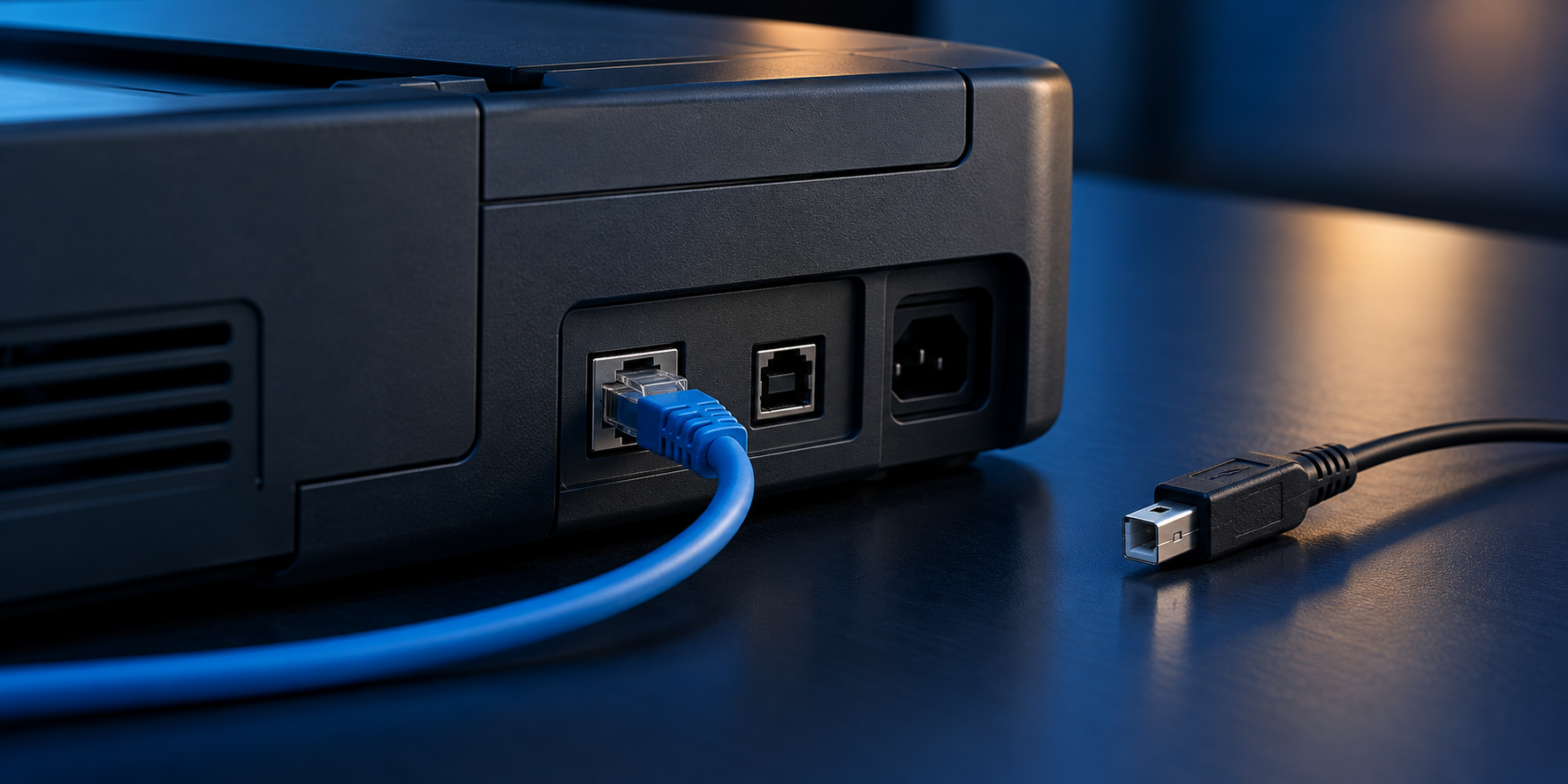
A printer may accept jobs through USB, the household network, a direct wireless connection, and an online account. Review these paths individually. A connected cable does not prove that wireless or cloud features are off.
Household WiFi and Ethernet
Keep the connection your household needs. If Ethernet provides the required access, inspect whether the normal WiFi connection can be disabled. If WiFi is necessary, use the strongest supported secure mode compatible with your router. Avoid weakening the whole household network to accommodate an obsolete printer.
A cable does not make an unsupported device trustworthy. It changes the connection medium, while the device's services and access still require attention.
Wi-Fi Direct
Wi-Fi Direct lets a phone or computer connect to a supported printer without going through the home router. It is separate from joining your household WiFi. Review its status even when everyone normally prints through the router.
Disable it if nobody needs it. If you keep it, use the model's supported password and approval controls. For example, HP documents manual or advanced connection settings and a custom password on supported models. Avoid assuming that a familiar printer name makes a direct connection private.
Cloud and Remote Printing
Inspect any manufacturer account linked to the printer. Identify remote-printing features, authorized people, and services you still use. Remove unnecessary sharing through the service's own controls.
Read the consequences before disabling web services. Some subscriptions and printer services depend on them. Local printing, account membership, and subscription enrollment can have separate controls; changing one is not proof that the others ended.
Limit Network Access Without Guessing
Check your router for port-forwarding rules or a DMZ-host setting that exposes the printer. Ordinary local printing should not require opening the printer directly to the public internet. Investigate and remove an unnecessary printer-specific exposure after recording its purpose and settings.
A secure guest WiFi network should keep visitors away from trusted household devices. Moving the printer onto that guest network, however, may also stop your own computers from finding it. Decide who needs access before choosing its network.
More advanced networks can place printers in a separate segment with specific access rules. Discovery and scanning may need additional configuration. Do not defeat isolation with a broad allow-all rule simply to make the printer appear in a list.
Within the printer, inspect optional protocols and services against the model's documentation. Disable unused ones one at a time. Do not switch off every unfamiliar acronym: a service may support the printing or discovery method you rely on. Record each change and test before continuing.
Check Scanning and Stored Destinations
A multifunction device may have destinations beyond the output tray. Review scan-to-email profiles, network folders, address books, and linked storage services where the model offers them. Remove obsolete recipients and connections deliberately.
If scanning to a network folder requires credentials, use a dedicated account with access limited to that destination where supported. Avoid storing an everyday administrator account in the printer just to deposit scans in one folder. Review the folder's permissions as well as the printer's saved profile.
Check retained jobs or document storage if those features exist. Do not assume every household printer has a hard drive or secure-release printing. Use the manual to establish what your device stores and which deletion controls apply.
Test the Whole Workflow and the Boundary
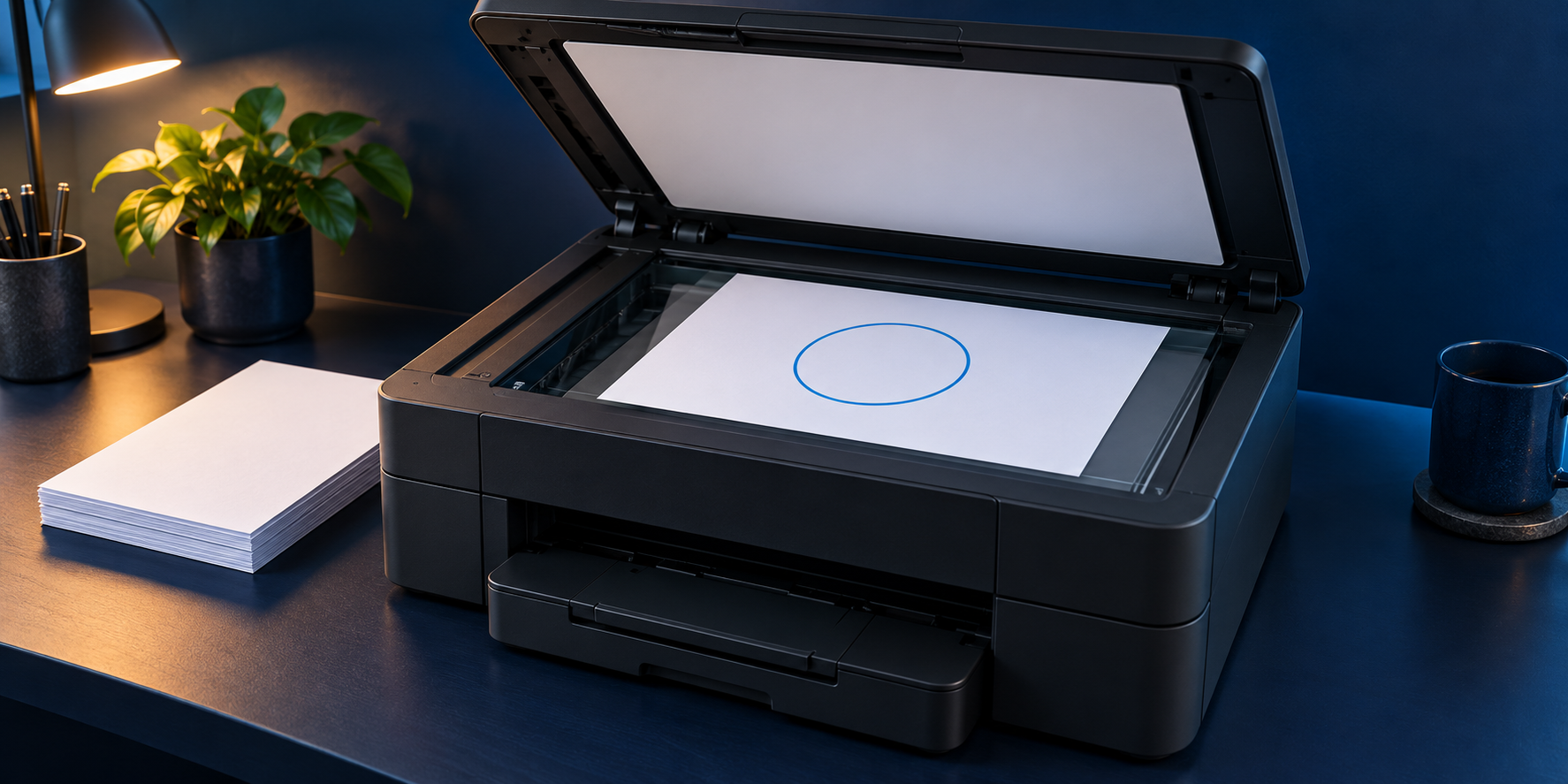
After each meaningful change, use a harmless test document and check the functions you recorded at the start:
- Print from every household computer that needs access.
- Print from a phone if that remains an approved feature.
- Scan to the intended computer, folder, or service and open the result.
- Let the printer sleep, then confirm it wakes and works again.
- Confirm administration still requires your chosen credential.
Test the unwanted paths too. From a guest device you control, check that the printer's administration page and printing service are inaccessible when isolation is intended. Failure to discover the printer is not enough: check its known address as well. Keep it awake during the test.
If something breaks, investigate the last change before restoring a whole bundle of services. If settings change without explanation or jobs arrive from an unknown source, preserve what you can and use your personal cybersecurity incident response kit to organize containment and follow-up.
Finish with a short baseline: approved connections, retained services, update method, and successful tests. Recheck it after a router replacement, printer reset, or household access change. The useful result is a printer whose access you can explain and whose everyday functions you have actually tested.